(Main): [Fake Data]
Most applications will have some form of storage to keep information. It can be from database, file and so on. I believe there are many ways to make fake data for unit test, but in this case we will look into creating and initializing fake database (SQL Server) and data respectively.
In unit test, there is 1 attribute called "ClassInitialize" that can be used for the unit test to execute before executing methods that are decorated with "TestMethod". So we will make used of this to create and initialize fake database with data. You can write the SQL statement into a script file or write them in the resource file (.resx). Then with the SQL statement, you can use EnterpriseLibrary or SqlCommand to execute the statement.
In this example, the method decorated with ClassInitialize will execute the following 2 methods. "InitializeTestDatabase" method will firstly drop existing database and recreate a new database. "InitializeData" method will initialize data into the newly created database.
[C#]
private static void InitializeTestDatabase(bool createDatabase = true)
{
bool isDatabaseExist = false;
using (var connection = new SqlConnection(ConfigurationManager.ConnectionStrings["master"].ConnectionString))
{
connection.Open();
using (var command = new SqlCommand("SELECT name FROM
master.sys.databases WHERE name = @Name ",
connection))
{
command.Parameters.Add(new SqlParameter("@Name", "UTDemoTest"));
using (var reader = command.ExecuteReader())
isDatabaseExist =
reader.Read();
}
if (isDatabaseExist)
using (var command = new SqlCommand("ALTER DATABASE
UTDemoTest SET SINGLE_USER WITH ROLLBACK IMMEDIATE; DROP DATABASE
UTDemoTest;", connection))
command.ExecuteNonQuery();
if (createDatabase)
using (var command = new SqlCommand("CREATE DATABASE
UTDemoTest", connection))
command.ExecuteNonQuery();
}
}
private static void InitializeData()
{
using (var connection = new SqlConnection(ConfigurationManager.ConnectionStrings["default"].ConnectionString))
{
connection.Open();
using (var command = new SqlCommand(Properties.Resources.InitializeTestDatabase, connection))
command.ExecuteNonQuery();
}
}
[VB]
Private Shared Sub InitializeTestDatabase(Optional ByVal createDatabase As Boolean = True)
Dim isDatabaseExist As Boolean = False
Using connection As SqlConnection = New SqlConnection(ConfigurationManager.ConnectionStrings("master").ConnectionString)
connection.Open()
Using command As SqlCommand = New SqlCommand("SELECT name FROM
master.sys.databases WHERE name = @Name ",
connection)
command.Parameters.Add(New SqlParameter("@Name", "UTDemoTest"))
Using reader As SqlDataReader = command.ExecuteReader()
isDatabaseExist = reader.Read()
End Using
End Using
If isDatabaseExist Then
Using command As SqlCommand = New SqlCommand("ALTER DATABASE
UTDemoTest SET SINGLE_USER WITH ROLLBACK IMMEDIATE; DROP DATABASE
UTDemoTest;", connection)
command.ExecuteNonQuery()
End Using
End If
If createDatabase Then
Using command As SqlCommand = New SqlCommand("CREATE DATABASE
UTDemoTest", connection)
command.ExecuteNonQuery()
End Using
End If
End Using
End Sub
Private Shared Sub InitializeData()
Using connection As SqlConnection = New SqlConnection(ConfigurationManager.ConnectionStrings("default").ConnectionString)
connection.Open()
Using command As SqlCommand = New SqlCommand(My.Resources.InitializeTestDatabase, connection)
command.ExecuteNonQuery()
End Using
End Using
End Sub
(Main): [Simulating Different & Failed Scenario]
Assuming that you have a system for customer to browse for products and redeem a product with points. There will be all kinds of checks and validation to be done before the customer successfully redeemed a product. In this kind of situation, you will need to write a few test method to cater for different scenario.
(Sub): [Test Method with ExpectedException Attribute]
You can create a test method and decorate it with ExpectedException and pass in an exception type. In the following example, the "Redeem" method is expecting a userId and productId. So assuming the user does not have sufficient points to redeem the product and I'm expecting the system to throw the exception type "ApplicationException".
[C#]
[TestMethod, ExpectedException(typeof(ApplicationException))]
public void InsufficientCreditExceptionTest()
{
var component = new RedemptionComponent();
component.Redeem(1, 1);
}
[VB]
<TestMethod(), ExpectedException(GetType(ApplicationException))>
Public Sub InsufficientCreditExceptionTest()
Dim component As RedemptionComponent = New RedemptionComponent()
component.Redeem(1, 1)
End Sub
(Sub): [Simulating Different Scenario]
There are times when the system need to cater for situation where the product is having discount for points redemption. With the discounted points, customer's remaining points gets subtracted lesser. So to cater for this kind of scenario, you may consider to fake the changes before the test and revert the changes after the test. Depending on your system, the changes can be from database, file, etc.
In this example, scenario 1 is to test the product redemption without discount, whereas Scenario 2 is to test the product redemption with discount. The discount percentage is controlled through configuration file. So in scenario 2, a changes is made to configuration before the test begin and revert the changes after the test is completed.
[C#] - [Scenario 1]
[TestMethod]
public void RedeemItemTest()
{
const string NAME = "Bern";
const long PRODUCT_ID = 1;
//
Retrieve user's current available point.
var currentCredit = RetrieveAvailablePoint(NAME);
var component = new RedemptionComponent();
//
Firstly verify whether Bern is a valid member.
var user = component.VerifyUser(NAME);
Assert.IsNotNull(user, "User
does not exist");
//
Redeem item and substract point from Bern's membership account.
component.Redeem(user.UserID, PRODUCT_ID);
//
Retreive user's current available point after deducted from redeeming product.
var deductedCredit = RetrieveAvailablePoint(NAME);
//
Retrieve product's point requirement.
var productPoint = RetrieveProductRequiredPoint(PRODUCT_ID);
Assert.AreEqual(deductedCredit, (currentCredit - productPoint), "User's point did not deducted correctly.");
}
[C#] - [Scenario 2]
[TestMethod]
public void RedeemItemWithDiscountTest()
{
const int DISCOUNT_VALUE = 20;
var config = ConfigurationManager.OpenExeConfiguration(ConfigurationUserLevel.None);
var defaultDiscountValue = config.AppSettings.Settings["discountPercentage"].Value;
//
Discount 20 percent.
config.AppSettings.Settings["discountPercentage"].Value = DISCOUNT_VALUE.ToString();
config.Save(ConfigurationSaveMode.Modified);
ConfigurationManager.RefreshSection("appSettings");
try
{
const string NAME = "Verl";
const long PRODUCT_ID = 1;
// Retrieve user's current available point.
var currentCredit = RetrieveAvailablePoint(NAME);
var component = new RedemptionComponent();
//
Firstly verify whether Verl is a valid member.
var user = component.VerifyUser(NAME);
Assert.IsNotNull(user, "User
does not exist.");
//
Redeem item and substract point from Verl's membership account.
component.Redeem(user.UserID,
PRODUCT_ID);
//
Retreive user's current available point after deducted from redeeming product.
var deductedCredit = RetrieveAvailablePoint(NAME);
//
Retrieve product's point requirement.
var productPoint = RetrieveProductRequiredPoint(PRODUCT_ID);
var discountedPoint = productPoint * (100 - DISCOUNT_VALUE) /
100;
Assert.AreEqual(deductedCredit, (currentCredit -
discountedPoint), "User's point did not
deducted correctly.");
}
finally
{
config.AppSettings.Settings["discountPercentage"].Value = defaultDiscountValue;
config.Save(ConfigurationSaveMode.Modified);
ConfigurationManager.RefreshSection("appSettings");
}
}
[VB] - [Scenario 1]
<TestMethod()>
Public Sub RedeemItemTest()
Const NAME As String = "Bern"
Const PRODUCT_ID As Long = 1
'
Retrieve user's current available point.
Dim currentCredit As Long = RetrieveAvailablePoint(NAME)
Dim component = New RedemptionComponent()
'
Firstly verify whether Bern is a valid member.
Dim user As User = component.VerifyUser(NAME)
Assert.IsNotNull(user, "User
does not exist.")
' Redeem
item and substract point from Bern's membership account.
component.Redeem(user.UserID, PRODUCT_ID)
'
Retreive user's current available point after deducted from redeeming product.
Dim deductedCredit As Long = RetrieveAvailablePoint(NAME)
'
Retrieve product's point requirement.
Dim productPoint As Integer = RetrieveProductRequiredPoint(PRODUCT_ID)
Assert.AreEqual(deductedCredit, (currentCredit - productPoint), "User's point did not deducted correctly.")
End Sub
[VB] - [Scenario 2]
<TestMethod()>
Public Sub RedeemItemWithDiscountTest()
Const DISCOUNT_VALUE As Integer = 20
Dim config As Configuration = ConfigurationManager.OpenExeConfiguration(ConfigurationUserLevel.None)
Dim defaultDiscountValue As String = config.AppSettings.Settings("discountPercentage").Value
'
Discount 20 percent.
config.AppSettings.Settings("discountPercentage").Value = DISCOUNT_VALUE.ToString()
config.Save(ConfigurationSaveMode.Modified)
ConfigurationManager.RefreshSection("appSettings")
Try
Const NAME As String = "Verl"
Const PRODUCT_ID As Long = 1
'
Retrieve user's current available point.
Dim currentCredit As Long = RetrieveAvailablePoint(NAME)
Dim component = New RedemptionComponent()
'
Firstly verify whether Verl is a valid member.
Dim user As User = component.VerifyUser(NAME)
Assert.IsNotNull(user, "User
does not exist.")
' Redeem
item and substract point from Verl's membership account.
component.Redeem(user.UserID,
PRODUCT_ID)
'
Retreive user's current available point after deducted from redeeming product.
Dim deductedCredit As Long = RetrieveAvailablePoint(NAME)
'
Retrieve product's point requirement.
Dim productPoint As Integer = RetrieveProductRequiredPoint(PRODUCT_ID)
Dim discountedPoint As Integer = productPoint * (100 - DISCOUNT_VALUE) / 100
Assert.AreEqual(deductedCredit, (currentCredit -
discountedPoint), "User's point did not
deducted correctly.")
Finally
config.AppSettings.Settings("discountPercentage").Value = defaultDiscountValue
config.Save(ConfigurationSaveMode.Modified)
ConfigurationManager.RefreshSection("appSettings")
End Try
End Sub
(Main): [Data-Driven Unit Test]
It can be quite messy when you wrote multiple test method to simulate multiple scenario. To solve this, consider implementing Data-Driven Unit Test. For more detail on how to create Data-Driven Unit Test with xml, refer here http://sylvester-lee.blogspot.my/2012/09/data-driven-unit-testing-with-xml.html.
In this example, the test method will test for different failed scenario when redeeming a product.
[C#]
[TestMethod, ExpectedException(typeof(ApplicationException))]
[DeploymentItem("\\RedeptionData.xml")]
[DataSource("Microsoft.VisualStudio.TestTools.DataSource.XML",
"|DataDirectory|\\RedeptionData.xml",
"Redeption",
DataAccessMethod.Sequential)]
public void RedeemItemFailedTest()
{
var component = new RedemptionComponent();
var user = default(User);
var needUserVerification = Convert.ToBoolean(TestContext.DataRow["VerifyUser"]);
if (needUserVerification)
{
user =
component.VerifyUser(TestContext.DataRow["Name"].ToString());
}
else
{
user = new User();
user.UserID = 0;
}
component.Redeem(user.UserID, Convert.ToInt64(TestContext.DataRow["ProductId"]));
}
[VB]
<TestMethod(), ExpectedException(GetType(ApplicationException))>
<DeploymentItem("\RedeptionData.xml")>
<DataSource("Microsoft.VisualStudio.TestTools.DataSource.XML",
"|DataDirectory|\RedeptionData.xml",
"Redeption",
DataAccessMethod.Sequential)>
Public Sub RedeemItemFailedTest()
Dim component As RedemptionComponent = New RedemptionComponent()
Dim user As User = Nothing
Dim needUserVerification As Boolean = Convert.ToBoolean(TestContext.DataRow("VerifyUser"))
If (needUserVerification) Then
user =
component.VerifyUser(TestContext.DataRow("Name").ToString())
Else
User = New User()
User.UserID = 0
End If
component.Redeem(user.UserID, Convert.ToInt64(TestContext.DataRow("ProductId")))
End Sub
(Main): [Code Coverage]
Once you have written your unit tests, you might be wondering whether the codes that you have written is being executed and tested. With code coverage, you will get a summary of how much of your test methods cover the codes written for your system.
To get the code coverage for all test methods,
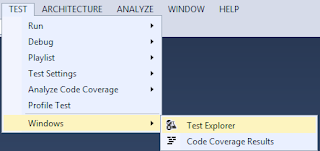
1) In case you don't see the "Test Explorer" windows, at the top menu in Visual Studio, click Test, hover to Windows and click Test Explorer. "Test Explorer" window will be shown in visual studio.
 |
| Open Test Explorer |
2) In "Test Explorer" window, look for the triangle-bottom icon beside the "Run..." link button, click on it and click "Analyze Code Coverage for All Tests".
 |
| Analyse Code Coverage for All Tests |
To get code coverage over services, check it out here http://jaryl-lan.blogspot.com/2016/06/visual-studio-get-unit-test-code.html.
The following link contain the demo project with samples for unit test.